When custom JavaScript is used in Webflow, it’s usually rendered on the client side. That means the resulting HTML is irrelevant for SEO, because search engine bots like Googlebot only see the HTML that Webflow renders on the server side.
As a result, search engine crawlers may not index your website’s content correctly, leading to poorer rankings and lower visibility. To solve this problem, you can set up a reverse proxy with Cloudflare Workers and prerender.io so that search engine crawlers can effectively capture and index the JS-based content of your site.
A reverse proxy with Cloudflare Workers and prerender.io is one of the best solutions for SEO problems on JavaScript-heavy websites.
This approach ensures that search engine crawlers can effectively capture and index the content of your JavaScript-based site.
Here’s a step-by-step guide to setting it up.
Step-by-step guide
1. Sign up for Cloudflare and Prerender.io
First, create an account with Cloudflare (https://www.cloudflare.com) and with Prerender.io (https://prerender.io). If you already have a Cloudflare account, make sure your domain is added and configured correctly.
2. Set up Webflow with Cloudflare
To set up a Webflow site behind a Cloudflare proxy, follow these 6 steps:
- Add your domain to Cloudflare and configure it correctly.
- Make sure the DNS record is set to proxied (orange cloud enabled).
- Disable SSL in Webflow and copy the empty DNS records (without SSL).
- Add the copied records to the DNS settings in Cloudflare.
- Re-enable SSL in the Webflow settings.
- Ignore any warnings in Webflow about AAAA records.
3. Set up a Cloudflare Worker
In the Cloudflare dashboard, navigate to the “Workers” tab and click “Create a Worker.” This takes you to the Worker editor, where you write your JavaScript code.
4. Configure the reverse proxy
In the Worker editor, write JavaScript code that handles incoming requests and forwards them either to your origin server or to Prerender.io, as needed.
Here’s a sample code snippet to get you started:
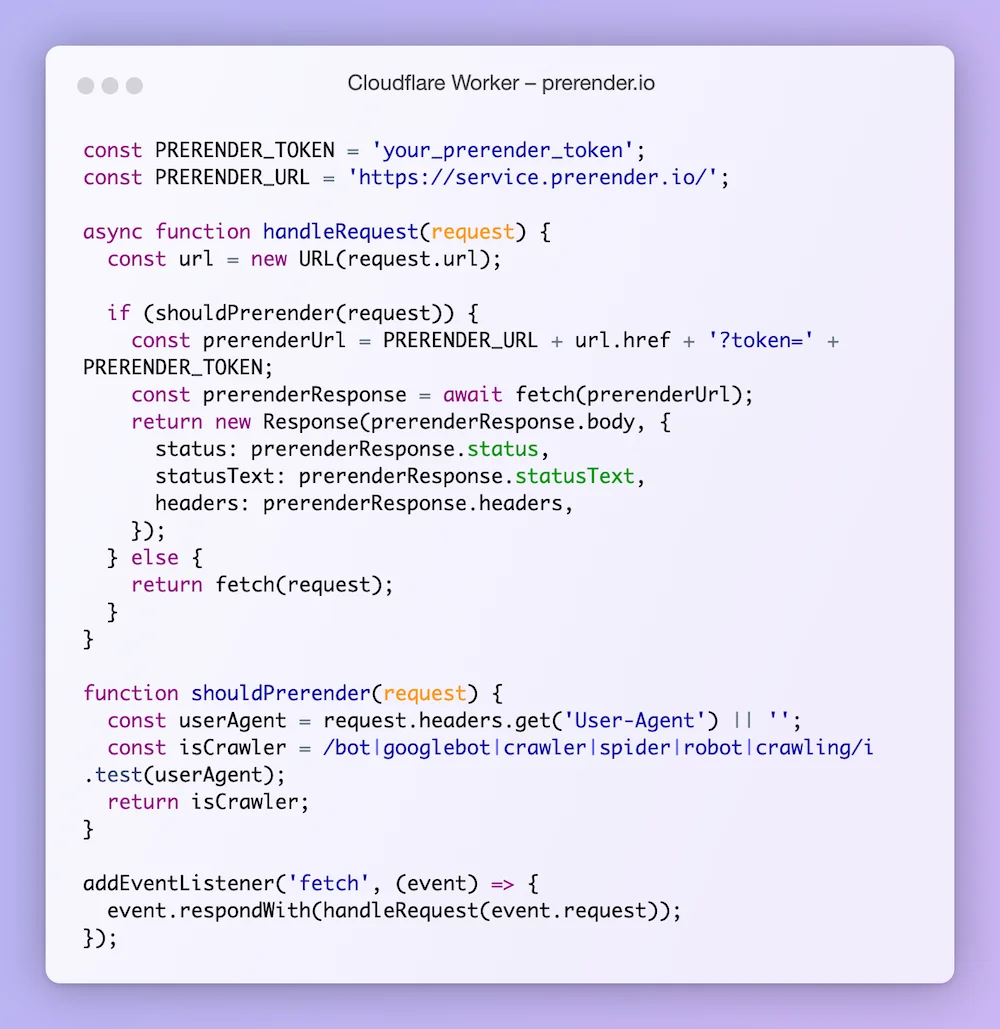
Copy this code from GitHub Gist.
Replace 'your_prerender_token' with your actual Prerender.io API token. This code checks whether the request comes from a crawler and, if so, sends it to Prerender.io for rendering. Otherwise, it forwards the request to your origin server.
Note: This is a simple solution! To make sure that really all search and social media bots are captured correctly, I recommend using the full JavaScript from prerender.io. You’ll find it in the following GitHub repository, and a detailed guide to the Cloudflare ESM syntax integration is available here.
5. Deploy the Cloudflare Worker
Save your Cloudflare Worker and deploy it. The Worker now runs for all requests to your domain.
6. Test your setup
With tools like Google’s Mobile-Friendly Test or the Chrome extension User-Agent Switcher, you can see how your website is crawled and rendered by Googlebot.
Conclusion
By following these steps, you set up a reverse proxy that routes requests from search engine crawlers through Prerender.io, delivering them a fully rendered version of your JavaScript-heavy website. This should improve your site’s SEO performance by making your content more accessible to search engines. All other requests are routed directly to your Webflow website.